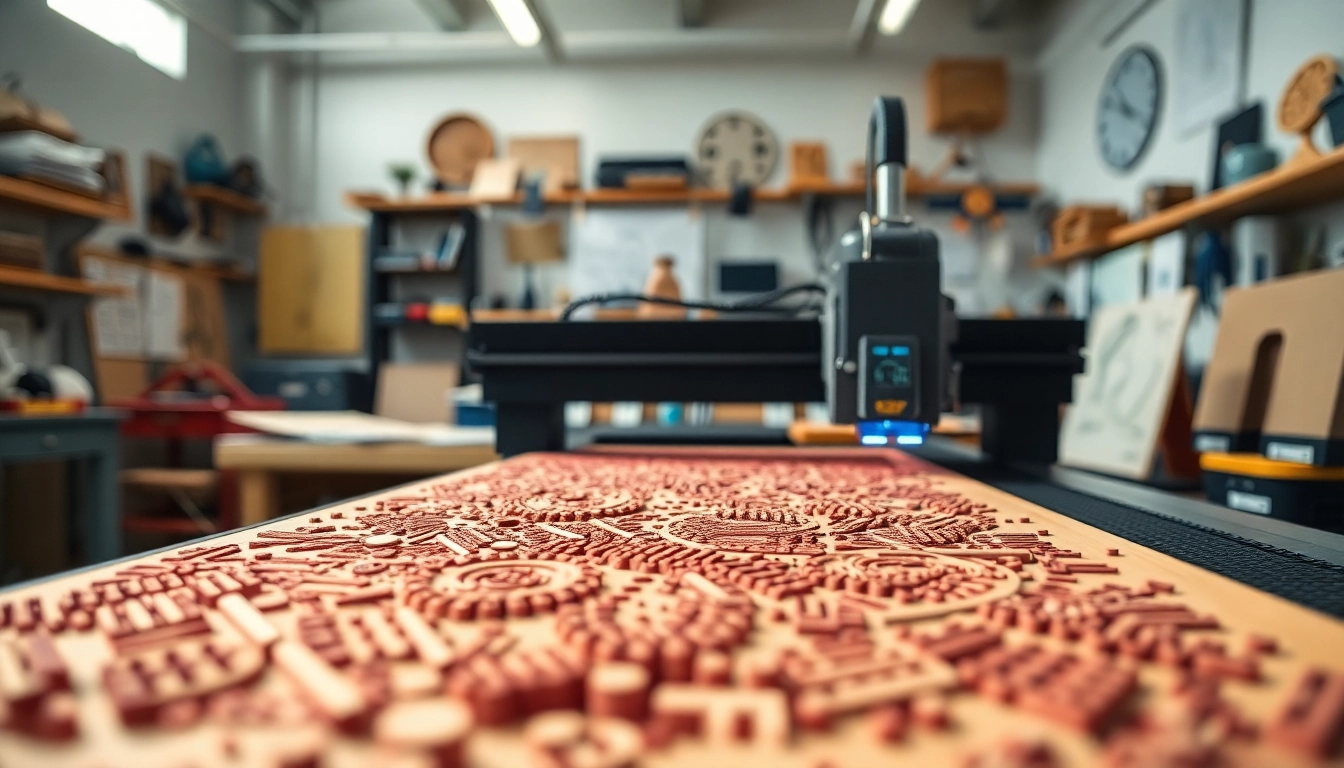
Understanding the Basics of dxf Files for Laser Cutting
What is a dxf File?
A DXF file, or Drawing Exchange Format file, is a type of CAD file developed by Autodesk for enabling data interoperability between AutoCAD and other software. It includes 2D and 3D vector graphics, making it ideal for various applications in design and manufacturing. This versatile file format supports a wide array of geometric shapes, making it a go-to for professionals working with laser cutting technology.
The Role of dxf Files in Laser Cutting
In laser cutting, a dxf file for laser cutting serves as the blueprint that guides the laser cutter. The vector paths defined in the DXF file translate directly into the cutting paths the laser follows, allowing for precision and detail. Properly created DXF files ensure that laser cuts are accurate, with clean lines and correct dimensions that reflect the designer's intent.
Common Applications of dxf Files
DXF files are commonly used in a myriad of applications, including:
- Architectural Plans: For creating intricate building layouts and designs.
- Jewelry Design: Used for crafting detailed jewelry pieces.
- Signage: Ideal for producing high-precision signs and logos.
- Model Prototyping: Useful in creating prototypes for various products.
Choosing the Right Software for dxf Files
Essential Software Features to Look For
When choosing software for creating and editing DXF files, consider the following key features:
- Vector Support: Essential for both 2D and 3D designs.
- File Export Options: Ensure compatibility with laser cutting technology.
- User Interface: A user-friendly interface will improve overall usability.
- Customization Options: Ability to create tailored designs for unique projects.
Top Software Options for Creating dxf Files
Several software options are widely recognized for generating and manipulating DXF files:
- AutoCAD: Industry standard for CAD, known for its comprehensive tools.
- Inkscape: A free vector graphic editor that supports DXF.
- CorelDRAW: Popular among designers for its rich feature set and easy export functions.
- Adobe Illustrator: While primarily for graphics, it also offers robust DXF capabilities.
Integrating dxf Files with Laser Cutting Machines
Integrating DXF files with laser cutting machines involves a few key steps:
- Upload the File: Transfer the DXF file to the laser cutting software.
- Configure the Settings: Set parameters like speed, power, and frequency based on the material.
- Test Cuts: Perform test cuts to ensure accuracy before the final operation.
Best Practices for Preparing a dxf File for Laser Cutting
Ensuring File Compatibility
To ensure that your DXF file is compatible with your laser cutting machine, it’s crucial to:
- Check the supported DXF versions of your cutting software.
- Avoid complex elements that aren’t supported, such as gradients or non-vector shapes.
- Ensure that all paths are closed to avoid cutting errors.
Optimizing Designs for Laser Cutting
Optimizing designs involves considering factors such as:
- Line Thickness: Ensure lines are thin enough for precise cuts.
- Spacing: Maintain appropriate spacing between intricate designs to avoid material burning or excess vapor.
- Material Choice: Tailor your design based on the properties of the material you are cutting.
Common Pitfalls to Avoid
While working with DXF files, here are common pitfalls you should avoid:
- Inconsistent Units: Always use consistent measurement units throughout your design.
- Ignoring Software Limitations: Be aware of what your software can and cannot do, to prevent errors during cutting.
- Overcomplicated Designs: Simplify designs where possible to prevent cutting failures.
Advanced Techniques for Using dxf Files Effectively
Layer Management in dxf Files
Effective layer management in DXF files can help streamline your projects. Use different layers for:
- Cutting Operations: Separate layers for different cutting parameters (e.g., cut, engrave).
- Design Elements: Use layers to organize various components of your design for clarity.
- Color Coding: Employ color coding for easy identification of different functions.
Incorporating Custom Elements
For enhanced designs, consider integrating custom elements such as:
- Textures: Create textures through engraving on the material.
- Text: Ensure that text is appropriately sized and legible.
- Logos and Images: Incorporate brand elements thoughtfully into the design.
Testing and Prototyping Designs
Before final production, testing and prototyping are crucial for success. Steps include:
- Scale Modeling: Create smaller versions of your designs to test feasibility.
- Material Samples: Use the same material intended for the final product to check for accuracy.
- Iterate on Feedback: Revise designs based on the outcomes of prototype tests.
Frequently Asked Questions about dxf Files for Laser Cutting
What types of designs can be created with dxf files?
DXF files can be used for intricate patterns, logos, and 3D models suitable for various materials, making them versatile for different creative projects.
Do all laser cutters accept dxf files?
Most modern laser cutters support dxf file formats. It's advisable to check the specifications of your particular model to ensure compatibility.
Can I edit a dxf file after exporting it?
Yes, dxf files can be edited using compatible software, allowing for design adjustments and modifications before the cutting process.
What materials can I cut using a dxf file?
Common materials suitable for cutting with a dxf file include wood, acrylic, fabric, and cardstock, providing versatility for different project requirements.
Is there a preferred resolution for dxf files?
While resolution isn't directly applicable to vector files like dxf, ensuring precise dimensions in your design is critical for achieving accurate cuts.